
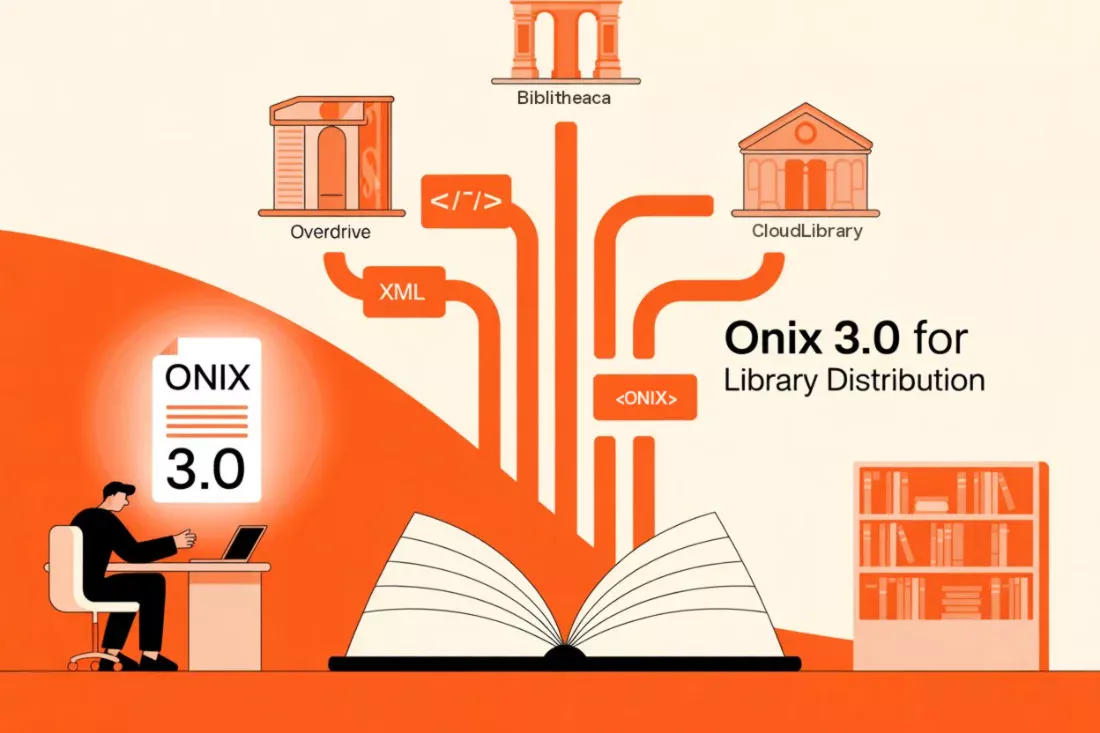
How to Use the ONIX 3.0 Standard for Library Distribution
A practical guide to creating ONIX 3.0 files and submitting your self-published books to library systems like OverDrive, Ingram LibrarySelector, and Bibliotheca.
If you’re a self-published author hoping to get your books into libraries, you’re up against a wall of technical requirements. Most indie authors submit through aggregators like IngramSpark or Draft2Digital and hope for the best. But if you want real control over your library presence, you need to understand ONIX 3.0.
The right ONIX file means your book appears in OverDrive, Bibliotheca, and cloudLibrary catalogs. The wrong file—or no file at all—means your book stays invisible to the millions of readers who borrow from libraries every year.
Why ONIX 3.0 Matters for Library Distribution
Library catalog systems don’t browse Amazon or retailer websites. They receive metadata through standardized feeds, and ONIX 3.0 is the global standard for that communication.
Libraries that use ONIX 3.0 include:
- OverDrive (serves 30,000+ libraries worldwide)
- Bibliotheca (formerly 3M Cloud Library)
- Ingram LibrarySelector
- Bibliographic Data Services (BDS)
- VLB (German book trade)
When you submit your book through an aggregator like IngramSpark, they handle ONIX generation for you. But the quality varies, and you have no control over the metadata. Creating your own ONIX 3.0 file gives you direct access to library systems—and better discoverability.
ONIX 3.0 Elements for Library Distribution
The ONIX 3.0 standard contains hundreds of elements. For library distribution, you need to focus on these key components:
Product Identifier
Every ONIX record requires a product identifier. For books, this is typically your ISBN-13.
<ProductIdentifier>
  <ProductIDType>15</ProductIDType>  <!-- ISBN-13 -->
  <IDValue>9781234567890</IDValue>
</ProductIdentifier>
Descriptive Detail
This section covers all the physical and digital specifications of your book.
<DescriptiveDetail>
  <ProductComposition>00</ProductComposition>  <!-- Single product -->
  <ProductForm>EA</ProductForm>  <!-- Electronic (or EB for eBook) -->
  <TitleDetail>
    <TitleType>01</TitleType>  <!-- Distinctive title -->
    <TitleElement>
      <TitleElementLevel>01</TitleElementLevel>
      <TitleText>Your Book Title</TitleText>
    </TitleElement>
  </TitleDetail>
  <Contributor>
    <ContributorRole>A01</ContributorRole>  <!-- Author -->
    <PersonName>Your Name</PersonName>
  </Contributor>
  <Language>
    <LanguageRole>01</LanguageRole>  <!-- Language of text -->
    <LanguageCode>eng</LanguageCode>
  </Language>
  <Extent>
    <ExtentType>00</ExtentType>  <!-- Total pages -->
    <ExtentValue>250</ExtentValue>
    <ExtentUnit>03</ExtentUnit>  <!-- Pages -->
  </Extent>
</DescriptiveDetail>
Library-Specific Fields
ONIX 3.0 introduced several elements specifically for library systems:
<LibraryDetail>
  <Audience>
    <AudienceCodeType>01</AudienceCodeType>  <!-- BISAC audience -->
    <AudienceCodeValue>YAF000000</AudienceCodeValue>  <!-- Young Adult -->
  </Audience>
  <EpubUsage>
    <EpubProductLinkType>04</EpubProductLinkType>  <!-- Lending enabled -->
    <EpubLoanPeriod>
      <Unit>02</Unit>  <!-- Weeks -->
      <Value>2</Value>
    </EpubLoanPeriod>
  </EpubUsage>
</LibraryDetail>
Collateral Detail
Libraries need your cover image and promotional materials:
<CollateralDetail>
  <SupportingResource>
    <ResourceContentType>01</ResourceContentType>  <!-- Cover image -->
    <ContentAudience>00</ContentAudience>  <!-- Unrestricted -->
    <ResourceMode>03</ResourceMode>  <!-- Image -->
    <ResourceLink>https://yourwebsite.com/cover.jpg</ResourceLink>
  </SupportingResource>
  <TextContent>
    <TextType>02</TextType>  <!-- Description -->
    <ContentAudience>00</ContentAudience>
    <Text>Your book description here...</Text>
  </TextContent>
</CollateralDetail>
Free Tools for Creating ONIX 3.0 Files
You don’t need expensive software to create valid ONIX 3.0 files. Several free and low-cost options exist:
1. ONIX Generator (Bowker)
Bowker offers a free ONIX generator for US ISBN registrants. It creates basic ONIX 2.1 files that most library aggregators accept. Visit myidentifiers.com to access it.
Limitations:
- Creates ONIX 2.1 (older standard, but compatible)
- Limited customization options
- No batch processing
2. XML Notepad or VS Code
Write your own ONIX files using any text editor. XML Notepad (Windows) or Visual Studio Code provide syntax validation and autocomplete.
Pros:
- Full control over every element
- Batch processing possible with scripts
- Free
Cons:
- Requires ONIX knowledge
- Manual validation needed
3. Edifact Composer
A more advanced tool for ONIX creation with validation built-in. Some distributors provide access to their customers.
4. ONIX Flattener (GitHub)
Several open-source tools exist for converting spreadsheet data to ONIX format:
- onix-tools (Python): Converts CSV to ONIX
- onix-generator (JavaScript): Browser-based generation
These tools let you maintain your metadata in spreadsheets and generate ONIX files on demand.
Step-by-Step: Creating Your First ONIX 3.0 File
Here’s a practical workflow for creating a library-ready ONIX 3.0 file:
Step 1: Gather Your Metadata
Before writing XML, collect:
- ISBN-13 (without hyphens)
- Book title and subtitle
- Author name (as you want it displayed)
- Publisher name
- Publication date
- Book description (150-200 words)
- Cover image URL
- BISAC category codes
- Target audience (adult, young adult, children’s)
- File format (ePub is preferred for libraries)
Step 2: Choose Your Format
Decide whether you’re submitting directly to libraries or through an aggregator:
| Method | Control | Technical Skill | Best For |
|---|---|---|---|
| Aggregator (IngramSpark) | Low | None | Authors wanting simple distribution |
| Aggregator (Draft2Digital) | Medium | None | Authors using their distribution network |
| Direct Submission | High | Moderate | Authors targeting specific library systems |
Step 3: Create the XML File
Here’s a complete template for an eBook ONIX 3.0 file:
<?xml version="1.0" encoding="UTF-8"?>
<ONIXMessage xmlns="http://www.editeur.org/onix/3.0/reference">
  <Header>
    <Sender>
      <SenderName>Your Publisher Name</SenderName>
    </Sender>
    <SentDateTime>20260217T050000Z</SentDateTime>
  </Header>
  <Product>
    <RecordReference>9781234567890</RecordReference>
    <NotificationType>03</NotificationType>  <!-- Final notification -->
    <ProductIdentifier>
      <ProductIDType>15</ProductIDType>
      <IDValue>9781234567890</IDValue>
    </ProductIdentifier>
    <DescriptiveDetail>
      <ProductComposition>00</ProductComposition>
      <ProductForm>EB</ProductForm>  <!-- eBook -->
      <TitleDetail>
        <TitleType>01</TitleType>
        <TitleElement>
          <TitleElementLevel>01</TitleElementLevel>
          <TitleText>Your Book Title</TitleText>
        </TitleElement>
      </TitleDetail>
      <Contributor>
        <ContributorRole>A01</ContributorRole>
        <PersonName>Author Name</PersonName>
      </Contributor>
      <Language>
        <LanguageRole>01</LanguageRole>
        <LanguageCode>eng</LanguageCode>
      </Language>
      <Audience>
        <AudienceCodeType>01</AudienceCodeType>
        <AudienceCodeValue>FIC022000</AudienceCodeValue>  <!-- BISAC Thriller -->
      </Audience>
    </DescriptiveDetail>
    <CollateralDetail>
      <TextContent>
        <TextType>02</TextType>
        <ContentAudience>00</ContentAudience>
        <Text>Your 150-200 word description here...</Text>
      </TextContent>
      <SupportingResource>
        <ResourceContentType>01</ResourceContentType>
        <ContentAudience>00</ContentAudience>
        <ResourceMode>03</ResourceMode>
        <ResourceLink>https://yoursite.com/cover.jpg</ResourceLink>
      </SupportingResource>
    </CollateralDetail>
    <PublishingDetail>
      <Publisher>
        <PublisherName>Your Publisher Name</PublisherName>
      </Publisher>
      <PublishingDate>
        <PublishingDateRole>01</PublishingDateRole>
        <Date>20250217</Date>
      </PublishingDate>
    </PublishingDetail>
  </Product>
</ONIXMessage>
Step 4: Validate Your ONIX File
Before submitting, validate your file:
- XML Validation: Ensure well-formed XML (no missing tags, proper encoding)
- ONIX Validation: Use the EDItEUR online validator or ONIX check tools
- Check Required Fields: Some library systems reject files missing mandatory elements
Common validation errors include:
- Missing
RecordReference - Incorrect
ProductIDTypecodes - Invalid
LanguageCodevalues - Missing required
PublishingDate
Step 5: Submit to Library Systems
Option A: Through IngramSpark
- Upload your eBook files as normal
- In the metadata section, ensure ONIX fields are populated
- Select library distribution options
- Ingram generates and submits ONIX on your behalf
Option B: Direct to OverDrive
- Apply for a Publisher Direct account
- Upload your ONIX file and eBook
- OverDrive reviews and adds to their catalog
Option C: Through Aggregators
Draft2Digital, PublishDrive, and StreetLib all offer library distribution. Enable it in your dashboard and ensure your metadata is complete.
Common ONIX 3.0 Mistakes That Reject Your Book from Libraries
Many self-published authors make these errors that prevent library distribution:
Wrong Product Form Code
Using EA instead of EB for eBooks, or omitting the form code entirely. Libraries need to know exactly what format you’re providing.
Missing or Wrong Audience Codes
Libraries use audience codes to filter content. If you don’t provide an audience code, your book may be rejected or miscategorized.
Invalid ISBN Format
ONIX requires ISBN-13 without hyphens in most cases. Check your formatting before submission.
Overly Long Descriptions
Keep descriptions under 250 words. Longer descriptions get truncated in library catalogs.
Missing Cover Image
Libraries need a cover image to display your book. Provide a high-resolution image (at least 1000px wide) with a direct URL.
Wrong Publication Date Format
Use YYYYMMDD format for dates. February 17, 2026 becomes 20260217.
The Bottom Line
ONIX 3.0 isn’t just for big publishers. As a self-published author, understanding this standard gives you direct access to library catalogs that reach millions of readers. The initial learning curve is worth the control and discoverability you gain.
Start with a simple ONIX 2.1 file through Bowker’s free generator, validate it, and submit through your existing distributor. As you grow more comfortable, create custom ONIX 3.0 files for direct library submissions.
Libraries buy millions of books annually. Make sure your metadata is professional enough to get through their systems—and your book gets the visibility it deserves.