
ISBN and Metadata Errors That Tank Your Book Sales
A single typo in your ISBN record can split your book’s reviews, block distribution, or hide it from search. Here is how to audit and fix your metadata on Amazon and IngramSpark.
Metadata is the invisible sales force behind every book. When a reader searches for “mystery set in Mumbai” or “vegan cookbook for beginners,” it is metadata that decides whether your book appears on page one or page fifty.
For self-published authors, the stakes are even higher. A single mismatch between your ISBN record (Bowker/Nielsen) and your retailer listing (Amazon/IngramSpark) can cause catastrophic distribution failures. I have seen authors lose hundreds of pre-orders because their book was flagged as “unavailable” due to a metadata conflict.
Here are the most common ISBN and metadata errors that kill book sales, and exactly how to fix them.
1. The “ISBN Already In Use” Conflict (KDP vs. IngramSpark)
This is the #1 technical error indie authors face.
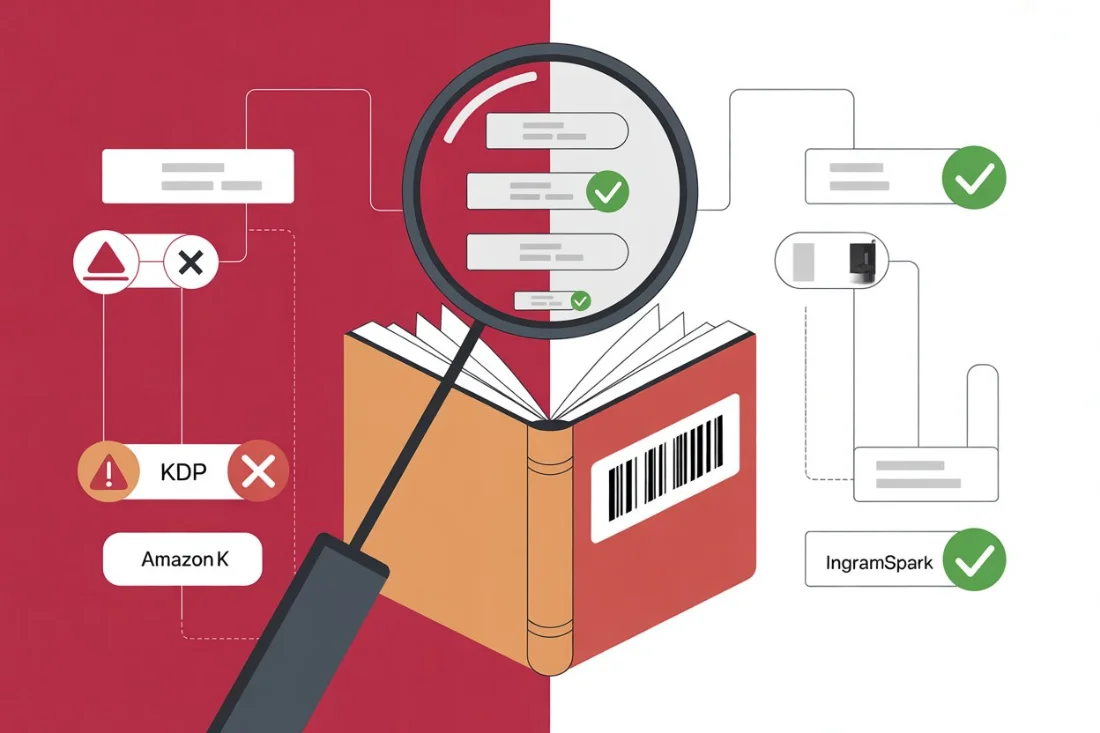
The Scenario: You buy an ISBN from Bowker. You list your paperback on Amazon KDP first and select “Expanded Distribution” because it sounds like a good idea. A week later, you try to set up the same book on IngramSpark to reach libraries and independent bookstores.
The Error: IngramSpark rejects your ISBN, stating it is “already in use.”
Why It Happens: When you check “Expanded Distribution” on KDP, Amazon effectively claims the exclusive right to distribute that ISBN to wholesalers. IngramSpark (a wholesaler) sees that the ISBN is already in the distribution chain and blocks you from creating a duplicate record.
The Fix:
- Prevent it: Always set up your title on IngramSpark first. You don’t have to publish it—just set up the record and upload files. Then, set it up on KDP.
- Fix it: If you’re already stuck, go to your KDP dashboard, uncheck “Expanded Distribution,” and save. You may need to wait up to 30 days for the record to clear from the catalog before IngramSpark will accept it. In rare cases, you may need to file a “Title Transfer” request with IngramSpark support to claim ownership of the ISBN record.
2. The “Imprint” Mismatch
Amazon KDP asks for your “Imprint.” Bowker asks for your “Publisher.” These are the same thing, but if they don’t match character for character, your book may be rejected or listed as two separate products.
The Error:
- Bowker: Blue Sky Publishing, LLC
- KDP: Blue Sky Publishing
The Consequence: Retailers may treat these as two different entities. In some systems, this mismatch triggers a “data integrity” warning that pauses your distribution.
The Fix: Copy and paste your publisher name exactly from your MyIdentifiers (Bowker) account into KDP and IngramSpark. Watch out for trailing spaces, “Inc/LLC” suffixes, and punctuation.
3. Inconsistent Author Names (The “Series Splitter”)
Consistency is king in database management. If you vary your author name even slightly, retailers will create separate author profiles for you.
The Error:
- Book 1: J.K. Rowling
- Book 2: Joanne K. Rowling
The Consequence:
- Amazon will not automatically link the books on your Author Page.
- Readers who click “Follow” on one profile won’t get updates about the other.
- Reviews and “Also Boughts” won’t aggregate correctly, hurting your algorithm visibility.
The Fix: Decide on your pen name format before you buy your first ISBN. Use that exact string for every single book, social media profile, and copyright page.
4. Title & Subtitle Stuffing
Amazon’s algorithm relies heavily on keywords, leading authors to “stuff” their subtitles with search terms.
The Error:
- Title: The Keto Diet
- Subtitle: The Best Keto Diet for Beginners to Lose Weight Fast and Feel Great in 2026 with Recipes
The Consequence:
- Rejection: IngramSpark and KDP are cracking down on “keyword stuffing.” If your subtitle on the cover doesn’t match the metadata exactly, they will reject your files.
- Unprofessional Appearance: Libraries and bookstores hate this. It looks like spam and ensures your book will never be stocked on a physical shelf.
The Fix: Keep your subtitle descriptive but clean. Put the keywords in the designated “Keywords” metadata field, not the visible title.
5. Wrong Format/Binding in ISBN Record
When you assign an ISBN in Bowker, you must select a specific format.
The Error:
- You assign an ISBN to a “Hardcover” in Bowker.
- You use that ISBN for a “Paperback” on KDP.
The Consequence: Data collision. Third-party retailers importing the feed will display conflicting info (e.g., listing it as a hardcover but showing paperback dimensions). This confuses customers and increases return rates.
The Fix: ISBNs are format-specific. Never reuse a “Paperback” ISBN for a “Hardcover” or “Ebook.” If you made a mistake in Bowker and the book hasn’t been published yet, you can sometimes edit the record. If it’s already published, you must burn a new ISBN.
6. Ignoring the “On Sale Date”
The Error: You leave the “Publication Date” or “On Sale Date” blank or set it to “Today” when setting up a pre-order.
The Consequence:
- Your book might go live immediately before you’re ready.
- Or, worse, it shows as “Out of Stock” because the release date is in the past but stock hasn’t “arrived” in the system yet.
The Fix: Set your publication date at least 2-4 weeks in the future if you want to build pre-orders. Ensure the date is identical across KDP, IngramSpark, and Bowker.
Summary Checklist
Before you hit “Publish,” audit your metadata:
- [ ] ISBN: Matches exactly on copyright page, Bowker, and KDP?
- [ ] Title/Subtitle: Identical on cover and metadata fields?
- [ ] Author Name: Consistent with previous books?
- [ ] Imprint: Matches Bowker record exactly?
- [ ] Format: Does the ISBN format match the physical book format?
- [ ] Price: Is the price consistent across all channels?
Metadata isn’t sexy, but it’s the infrastructure of your author career. Get it right, and the sales will follow.